
With summer getaways ahead, it’s a great moment to make sure checking in on your Aurora KiwiSaver account is quick and easy.
You can add the Aurora member portal directly to your phone’s home screen, just like an app. That means one-tap access to view your balance, check recent performance, or update your details.
| Instructions | Apple iOS | Android |
|---|---|---|
Head to my.aurora.co.nz on your phone.
|
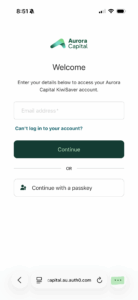 |
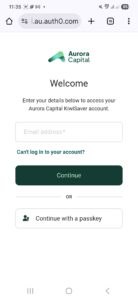 |
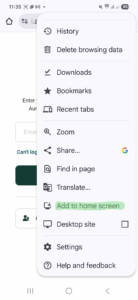
Click the three dots:
|
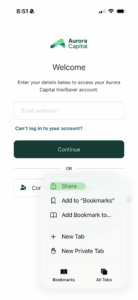 |
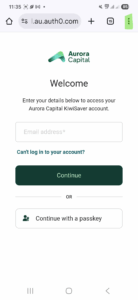 |
| Select ‘Add to home screen’. | 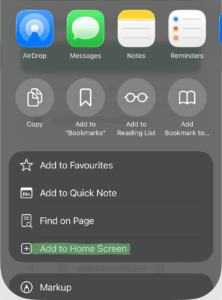 |
 |
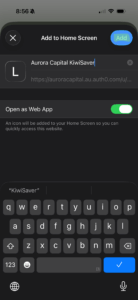
A pop up will appear:
|
 |
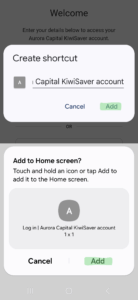 |
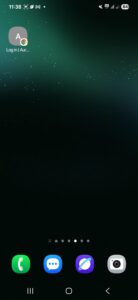
| Head to your phone home screen. You’ll now have the portal appear on your home screen. You can then click on the icon to access the portal with ease. | 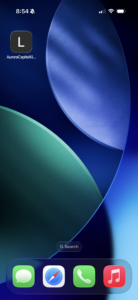 |
 |
Download a copy of the step-by-step guide here.
Keeping your Aurora member portal on your home screen makes it easier to stay informed and on track, wherever you’re off to this summer.
Warm wishes for the holiday season!